Showing posts with label HTML learn. Show all posts
0

HTML Paragraphs

Posted by Unknown on 14:10 in
HTML Paragraphs

HTML documents are divided into paragraphs.


HTML Paragraphs


Paragraphs are defined with the <p> tag.

Example

<p>This is a paragraph</p>
<p>This is another paragraph</p>

Try it yourself »

Note: Browsers automatically add an empty line before and after a paragraph.


Don't Forget the End Tag


Most browsers will display HTML correctly even if you forget the end tag:

Example

<p>This is a paragraph
<p>This is another paragraph

Try it yourself »

The example above will work in most browsers, but don't rely on it. Forgetting the end tag can produce unexpected results or errors.

Note: Future version of HTML will not allow you to skip end tags.


HTML Line Breaks


Use the <br> tag if you want a line break (a new line) without starting a new paragraph:

Example

<p>This is<br>a para<br>graph with line breaks</p>

Try it yourself »

The <br> element is an empty HTML element. It has no end tag.


HTML Output - Useful Tips


You cannot be sure how HTML will be displayed. Large or small screens, and resized windows will create different results.

With HTML, you cannot change the output by adding extra spaces or extra lines in your HTML code.

The browser will remove extra spaces and extra lines when the page is displayed. Any number of lines count as one line, and any number of spaces count as one space.

Try it yourself

(The example demonstrates some HTML formatting problems)


Examples

Examples from this page


HTML paragraphs
How HTML paragraphs are displayed in a browser.

Line breaks
The use of line breaks in an HTML document.

Poem problems
Some problems with HTML formatting.

More Examples


More paragraphs
The default behaviors of paragraphs.


HTML Tag Reference


W3Schools' tag reference contains additional information about HTML elements and their attributes.

Tag Description
<p> Defines a paragraph
<br> Inserts a single line break


0

HTML Headings

Posted by Unknown on 14:05 in
Headings are important in HTML documents.


HTML Headings


Headings are defined with the <h1> to <h6> tags.

<h1> defines the most important heading. <h6> defines the least important heading.

Example

<h1>This is a heading</h1>
<h2>This is a heading</h2>
<h3>This is a heading</h3>

Try it yourself »

Note: Browsers automatically add some empty space (a margin) before and after each heading.


Headings Are Important


Use HTML headings for headings only. Don't use headings to make text BIG or bold.

Search engines use your headings to index the structure and content of your web pages.

Since users may skim your pages by its headings, it is important to use headings to show the document structure.

H1 headings should be used as main headings, followed by H2 headings, then the less important H3 headings, and so on.


HTML Lines


The <hr>tag creates a horizontal line in an HTML page.

The hr element can be used to separate content:

Example

<p>This is a paragraph</p>
<hr><p>This is a paragraph</p>

Try it yourself »


HTML Comments


Comments can be inserted into the HTML code to make it more readable and understandable. Comments are ignored by the browser and are not displayed.

Comments are written like this:

Example

<!-- This is a comment -->

Try it yourself »

Note: There is an exclamation point after the opening bracket, but not before the closing bracket.


HTML Tip - How to View HTML Source


Have you ever seen a Web page and wondered "Hey! How did they do that?"

To find out, right-click in the page and select "View Source" (IE) or "View Page Source" (Firefox), or similar for other browsers. This will open a window containing the HTML code of the page.


Examples

Examples From This Page


Headings
How to display headings in an HTML document.

Hidden comments
How to insert comments in the HTML source code.

Horizontal lines
How to insert a horizontal line.


HTML Tag Reference


W3Schools' tag reference contains additional information about these tags and their attributes.

You will learn more about HTML tags and attributes in the next chapters of this tutorial.

Tag Description
<html> Defines an HTML document
<body> Defines the document's body
<h1> to <h6> Defines HTML headings
<hr> Defines a horizontal line
<!--> Defines a comment


0

HTML Attributes

Posted by Unknown on 14:01 in
Attributes provide additional information about HTML elements.


HTML Attributes


  • HTML elements can have attributes
  • Attributes provide additional information about an element
  • Attributes are always specified in the start tag
  • Attributes come in name/value pairs like: name="value"


Attribute Example


HTML links are defined with the <a> tag. The link address is specified in the href attribute:

Example

<a href="http://www.w3schools.com">This is a link</a>

Try it yourself »


Always Quote Attribute Values


Attribute values should always be enclosed in quotes.

Double style quotes are the most common, but single style quotes are also allowed.

RemarkTip: In some rare situations, when the attribute value itself contains quotes, it is necessary to use single quotes: name='John "ShotGun" Nelson'


HTML Tip: Use Lowercase Attributes


Attribute names and attribute values are case-insensitive.

However, the World Wide Web Consortium (W3C) recommends lowercase attributes/attribute values in their HTML 4 recommendation.

Newer versions of (X)HTML will demand lowercase attributes.


HTML Attributes Reference


A complete list of legal attributes for each HTML element is listed in our: HTML Tag Reference.

Below is a list of some attributes that can be used on any HTML element:

Attribute Description
class Specifies one or more classnames for an element (refers to a class in a style sheet)
id Specifies a unique id for an element
style Specifies an inline CSS style for an element
title Specifies extra information about an element (displayed as a tool tip)

0

HTML Elements

Posted by Unknown on 13:59 in
HTML Elements

HTML documents are defined by HTML elements.


HTML Elements


An HTML element is everything from the start tag to the end tag:

Start tag * Element content End tag *
<p> This is a paragraph </p>
<a href="default.htm"> This is a link </a>
<br>

* The start tag is often called the opening tag. The end tag is often called the closing tag.


HTML Element Syntax


  • An HTML element starts with a start tag / opening tag
  • An HTML element ends with an end tag / closing tag
  • The element content is everything between the start and the end tag
  • Some HTML elements have empty content
  • Empty elements are closed in the start tag
  • Most HTML elements can have attributes

Tip: You will learn about attributes in the next chapter of this tutorial.


Nested HTML Elements


Most HTML elements can be nested (can contain other HTML elements).

HTML documents consist of nested HTML elements.


HTML Document Example


<!DOCTYPE html>
<html>

<body>
<p>This is my first paragraph.</p>
</body>

</html>

The example above contains 3 HTML elements.


HTML Example Explained


The <p> element:

<p>This is my first paragraph.</p>

The <p> element defines a paragraph in the HTML document.
The element has a start tag <p> and an end tag </p>.
The element content is: This is my first paragraph.

The <body> element:

<body>
<p>This is my first paragraph.</p>
</body
>

The <body> element defines the body of the HTML document.
The element has a start tag <body> and an end tag </body>.
The element content is another HTML element (a p element).

The <html> element:

<html>

<body>
<p>This is my first paragraph.</p>
</body>


</html>

The <html> element defines the whole HTML document.
The element has a start tag <html> and an end tag </html>.
The element content is another HTML element (the body element).


Don't Forget the End Tag


Some HTML elements might display correctly even if you forget the end tag:

<p>This is a paragraph

The example above works in most browsers, because the closing tag is considered optional.

Never rely on this. Many HTML elements will produce unexpected results and/or errors if you forget the end tag .


Empty HTML Elements


HTML elements with no content are called empty elements.

<br> is an empty element without a closing tag (the <br> tag defines a line break).

Tip: In XHTML, all elements must be closed. Adding a slash inside the start tag, like <br />, is the proper way of closing empty elements in XHTML (and XML).


HTML Tip: Use Lowercase Tags


HTML tags are not case sensitive: <P> means the same as <p>. Many web sites use uppercase HTML tags.

W3Schools use lowercase tags because the World Wide Web Consortium (W3C) recommends lowercase in HTML 4, and demands lowercase tags in XHTML.

0

HTML Basic - 4

Posted by Unknown on 13:56 in

HTML Headings


HTML headings are defined with the <h1> to <h6> tags.

Example

<h1>This is a heading</h1>
<h2>This is a heading</h2>
<h3>This is a heading</h3>

Try it yourself »


HTML Paragraphs


HTML paragraphs are defined with the <p> tag.

Example

<p>This is a paragraph.</p>
<p>This is another paragraph.</p>

Try it yourself »


HTML Links


HTML links are defined with the <a> tag.

Example

<a href="http://www.w3schools.com">This is a link</a>

Try it yourself »

Note: The link address is specified in the href attribute.

(You will learn about attributes in a later chapter of this tutorial).


HTML Images


HTML images are defined with the <img> tag.

Example

<img src="w3schools.jpg" width="104" height="142">

Try it yourself »

Note: The filename and the size of the image are provided as attributes.

0
Posted by Unknown on 13:07 in


Hi friends , Are you want to learn HTML program ..just follow my step.
The source code of a web page is made up of HTML tags. Some tags are mandatory (all web pages must use them), but most tags are optional. The actual tags that you use will depend on the content you want to appear.

Take a look at the following code:

Code


Here's another example. This time, let's add some content:

Code


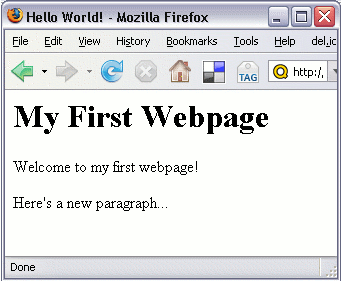
If you were to open the above HTML file in your browser, it should look something like this:
Screenshot of example web page
 

How do I use this Code?

So far I've showed you the code used to create a basic web page. I've also showed you what that web page looks like in a browser. Now I'm going to show you how to do this yourself.
To create a web page like the above example, do the following:
  1. Open up a text editor (such as Notepad or Simpletext)
  2. Open a new (blank) page (i.e. "File > New...")
  3. Copy the code from "Example 2" and paste it into your blank text file (or re-type it if you prefer)
  4. Save the file as "index.html" (take note of where you saved it)
Congratulations! You just created your first web page!

1st day..........exclusive by Saiful islam Saif

Copyright © 2009 SaifExclusive........... All rights reserved. Theme by Laptop Geek. | Bloggerized by FalconHive.